Implementing a Lambda Preprocessing Function
In this section, we will build a Lambda Preprocessing Function to automatically process raw data uploaded to S3. This is an important initial step in the machine learning pipeline — ensuring the data is clean, standardized, and ready for training models on Amazon SageMaker.
🎯 Goals
-
Build a Lambda function in Python to process CSV data from S3.
-
Automatically trigger Lambda when a new file is added to the
raw/directory. -
Write the processed results to the
processed/directory in the same bucket. -
Ensure the data is ready for training a SageMaker model.
🧠 Architecture Overview
Here’s how Lambda Preprocessing Function works in the entire pipeline:
📁 S3 Bucket
├── raw/ ← raw CSV uploaded
├── processed/ ← CSV processed, ready to train
-
Step 1: User or system uploads CSV file to
raw/. -
Step 2: S3 activates Lambda via trigger.
-
Step 3: Lambda reads file, cleans data (removes error lines, handles empty values…).
-
Step 4: Lambda writes processed file to
processed/.
🛠️ 4.1 – Create Lambda Function
-
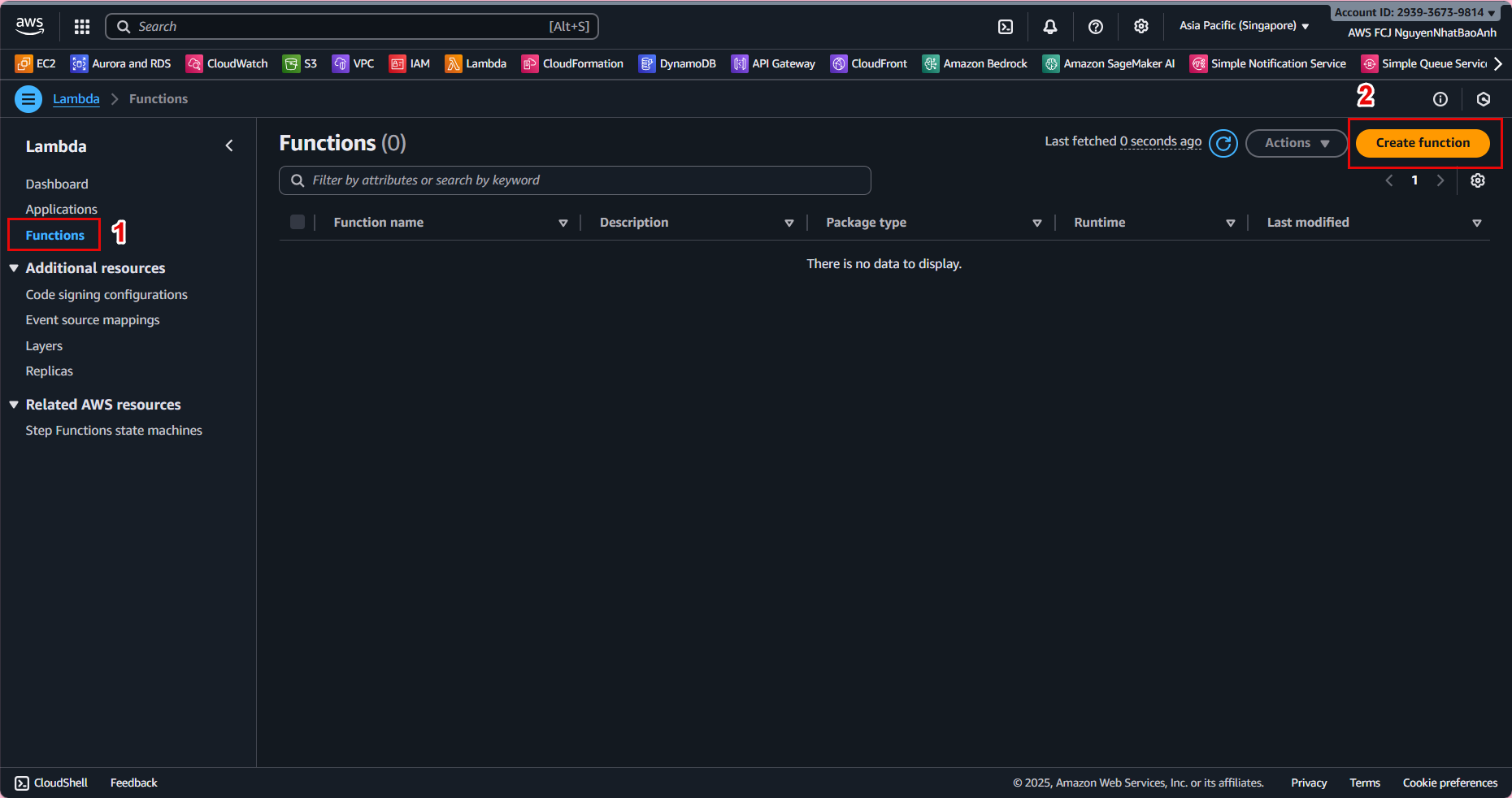
Go to AWS Lambda Console.
-
Click Create function.
-
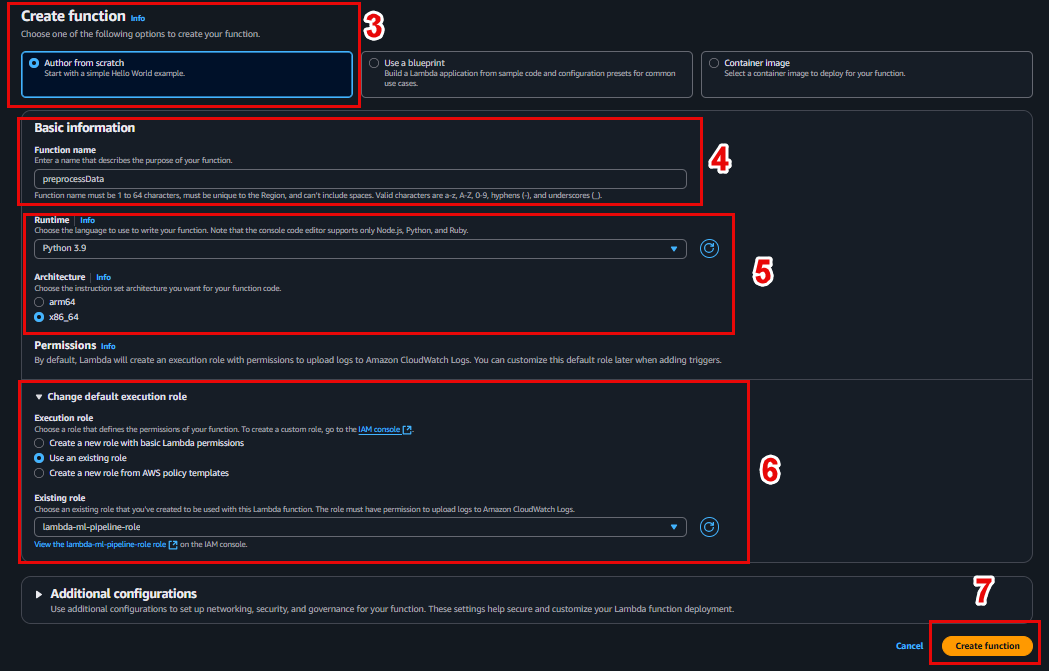
Configuration:
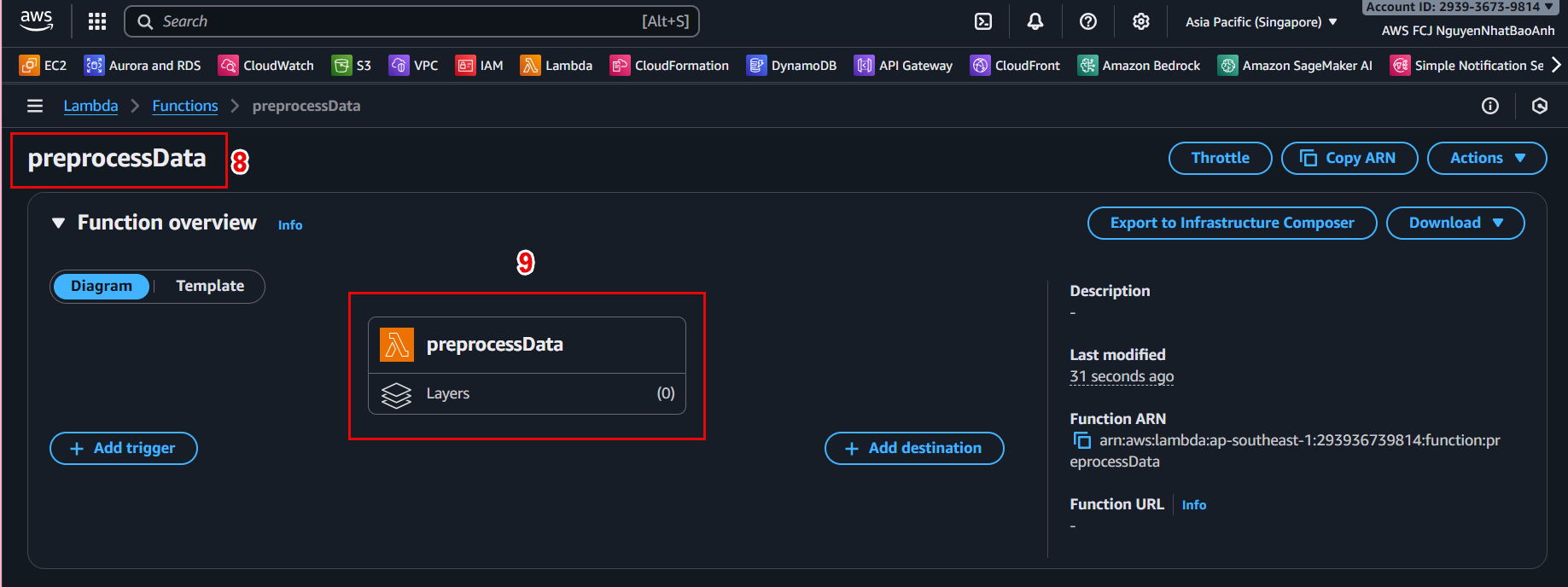
- Function name:
preprocessData - Runtime: Python 3.9
- Role: Select the IAM role created in the previous step (with S3 permissions).
📜 4.2 – Write code to process data
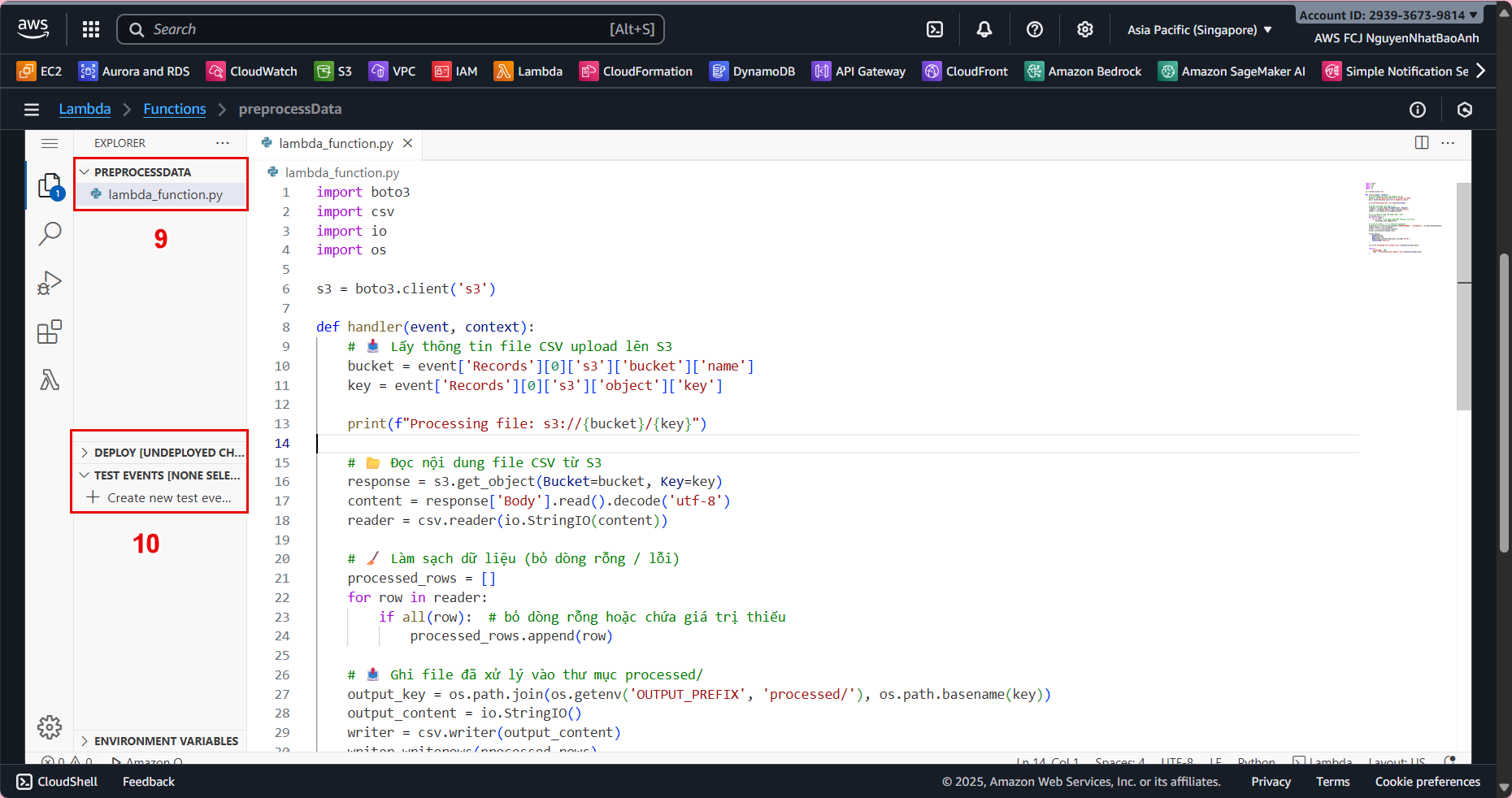
In the Code tab, replace the default content with the following code:
import boto3
import csv
import io
import os

s3 = boto3.client('s3')

def lambda_handler(event, context):
    # Lấy bucket và key của file mới upload
    bucket = event['Records'][0]['s3']['bucket']['name']
    key = event['Records'][0]['s3']['object']['key']

    print(f"Processing file: s3://{bucket}/{key}")

    # Đọc file CSV từ S3
    try:
        response = s3.get_object(Bucket=bucket, Key=key)
        raw_bytes = response['Body'].read()
        try:
            content = raw_bytes.decode('utf-8')       # Thử decode UTF-8
        except UnicodeDecodeError:
            content = raw_bytes.decode('utf-16')      # Nếu lỗi, thử UTF-16
    except Exception as e:
        print(f"Error reading file from S3: {e}")
        raise e

    reader = csv.reader(io.StringIO(content))

    processed_rows = []
    for row in reader:
        # Bỏ qua dòng rỗng hoặc lỗi
        if all(row):
            processed_rows.append(row)

    # Viết file đã xử lý vào folder processed/
    output_prefix = os.getenv('OUTPUT_PREFIX', 'processed/')
    output_key = os.path.join(output_prefix, os.path.basename(key))

    output_content = io.StringIO()
    writer = csv.writer(output_content)
    writer.writerows(processed_rows)

    # Upload file đã xử lý lên S3
    try:
        s3.put_object(
            Bucket=bucket,
            Key=output_key,
            Body=output_content.getvalue().encode('utf-8'),
            ContentType='text/csv'
        )
        print(f"Processed file saved to s3://{bucket}/{output_key}")
    except Exception as e:
        print(f"Error writing file to S3: {e}")
        raise e

    return {
        'statusCode': 200,
        'body': f"Processed file saved to {output_key}"
    }
⚙️ 4.3 – Assign Environment Variables
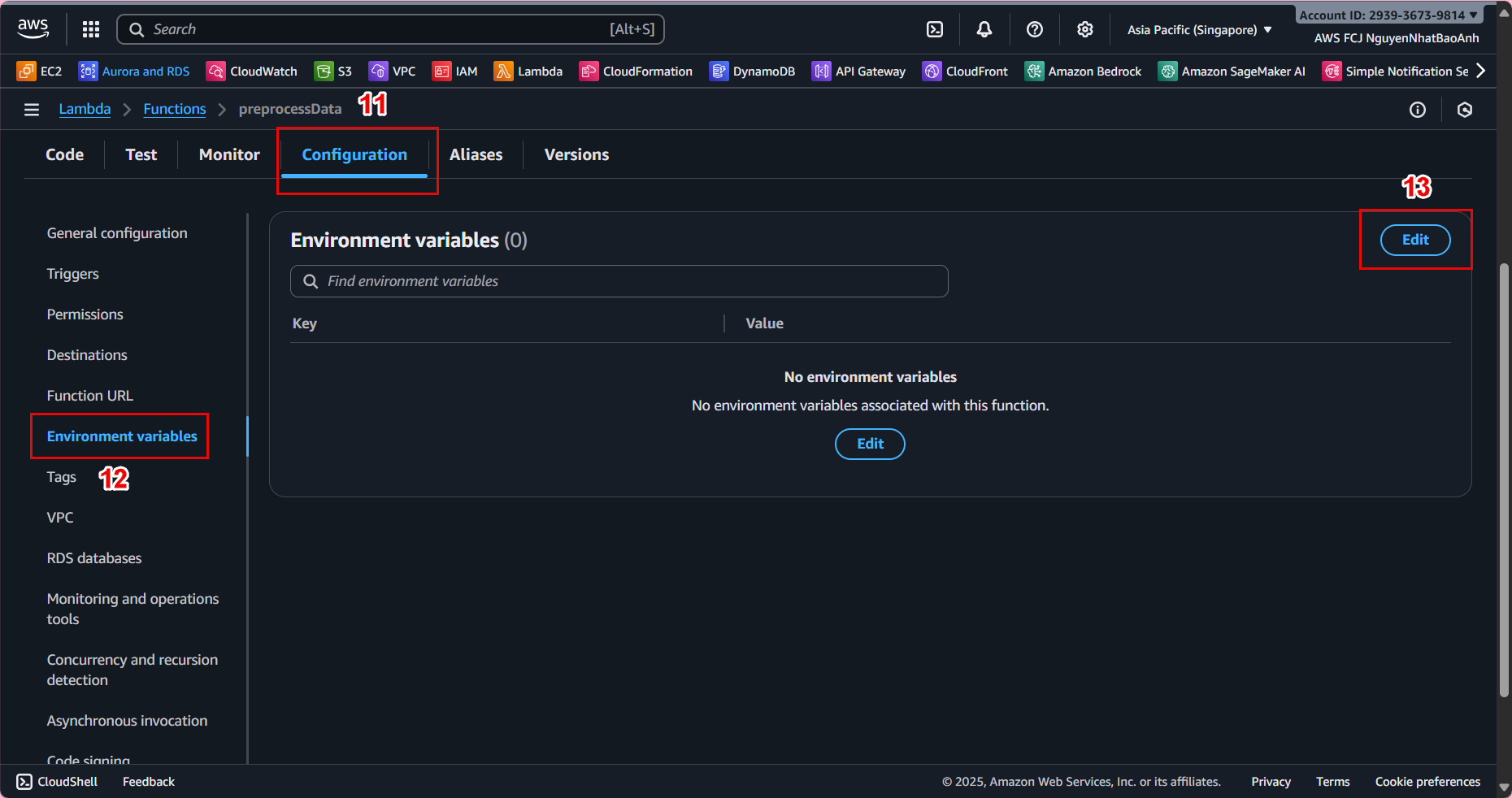
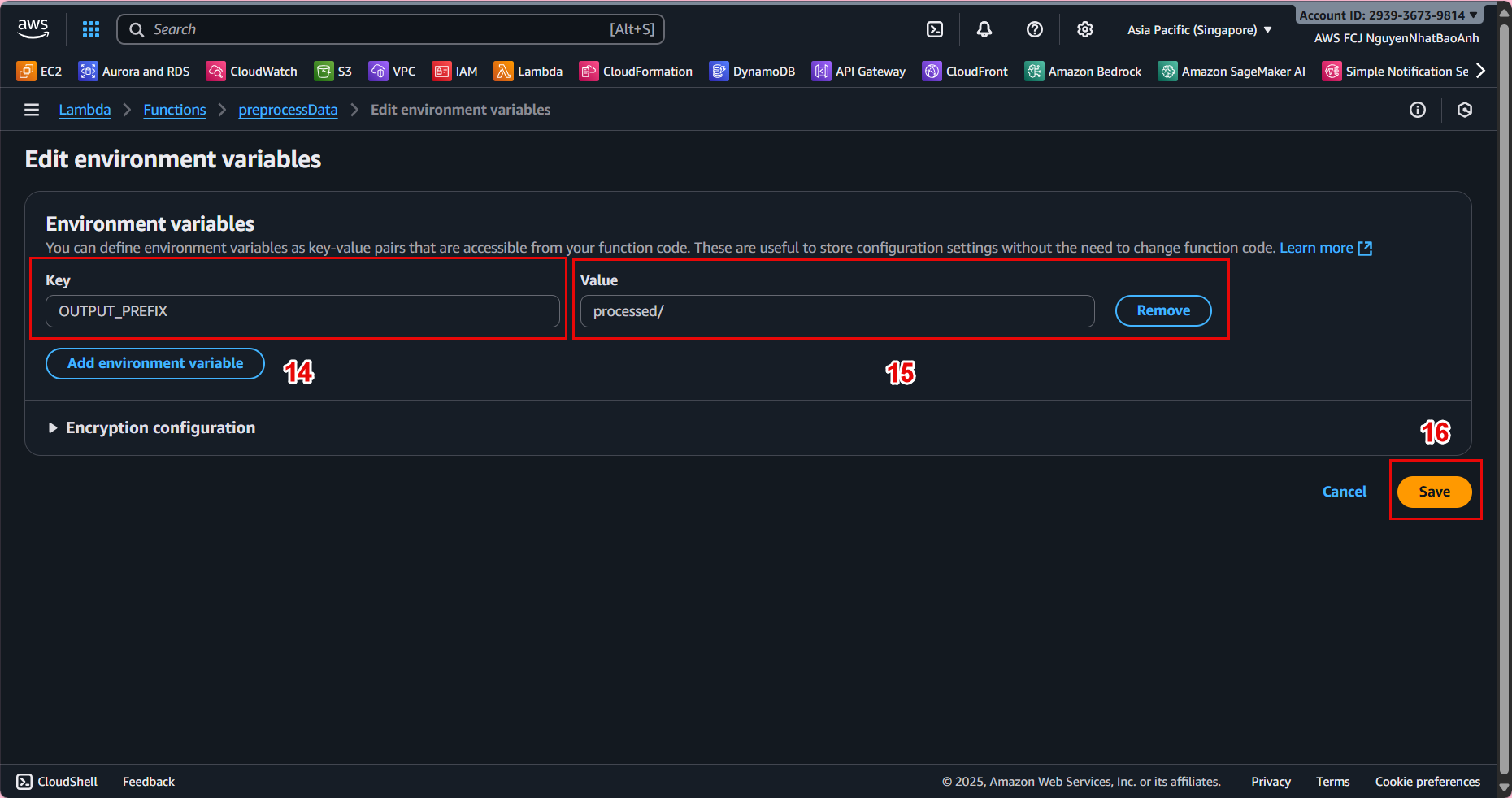
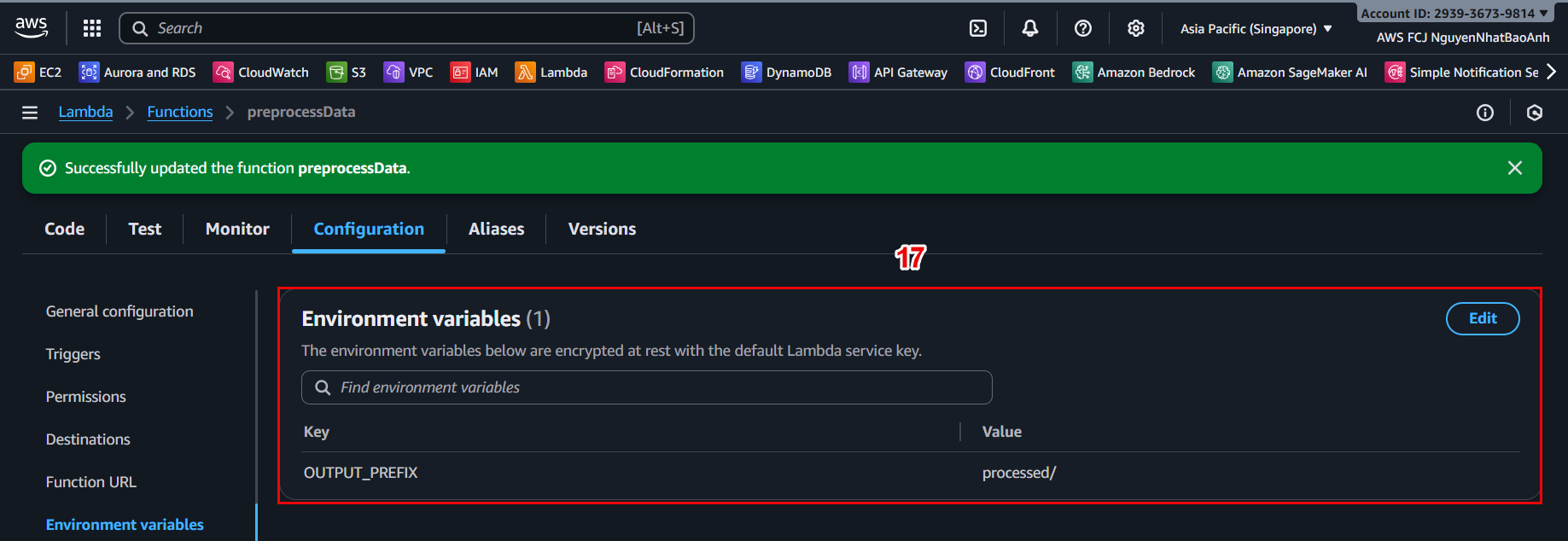
In the Configuration → Environment variables tab, click Edit and add:
- Key: OUTPUT_PREFIX
- Value: processed/
Environment variables help you easily change the output path without editing the source code.
📦 4.4 – Package and Upload Lambda (local option)
If developing on a local computer:
pip install -r requirements.txt -t .
zip -r preprocessData.zip .
Then go back to Lambda Console → Code tab → Upload from → .zip file.
Create a requirements.txt file with the following content:
boto3
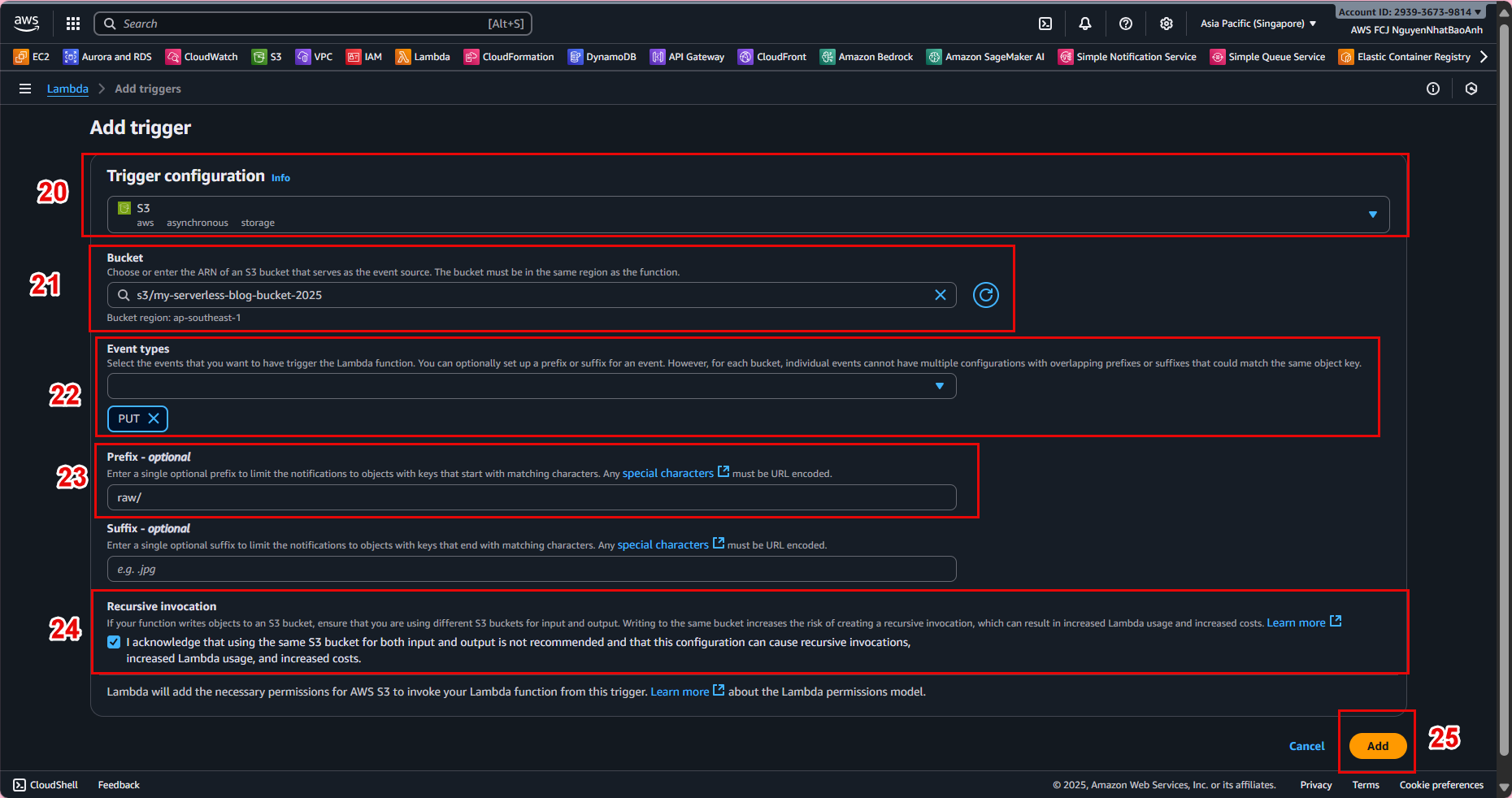
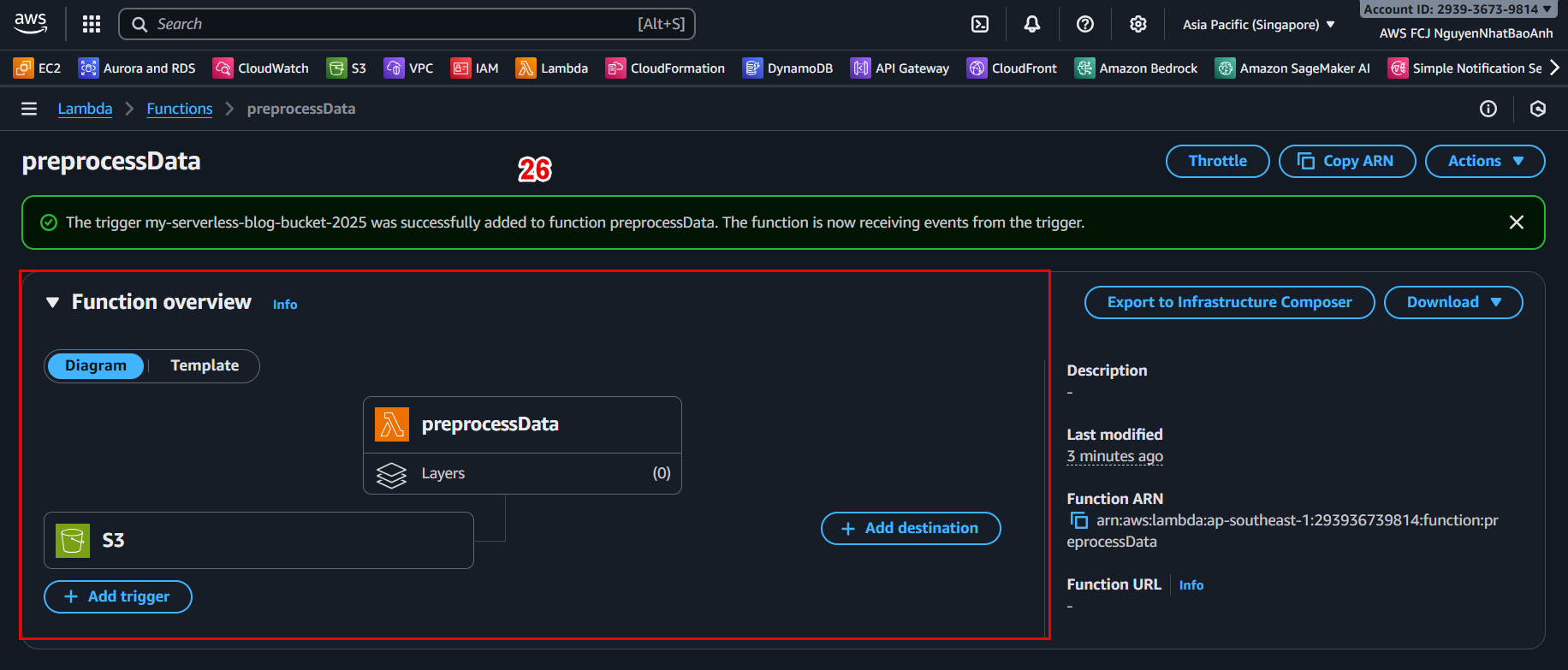
🔔 4.5 – Connect Lambda to S3 (Trigger)
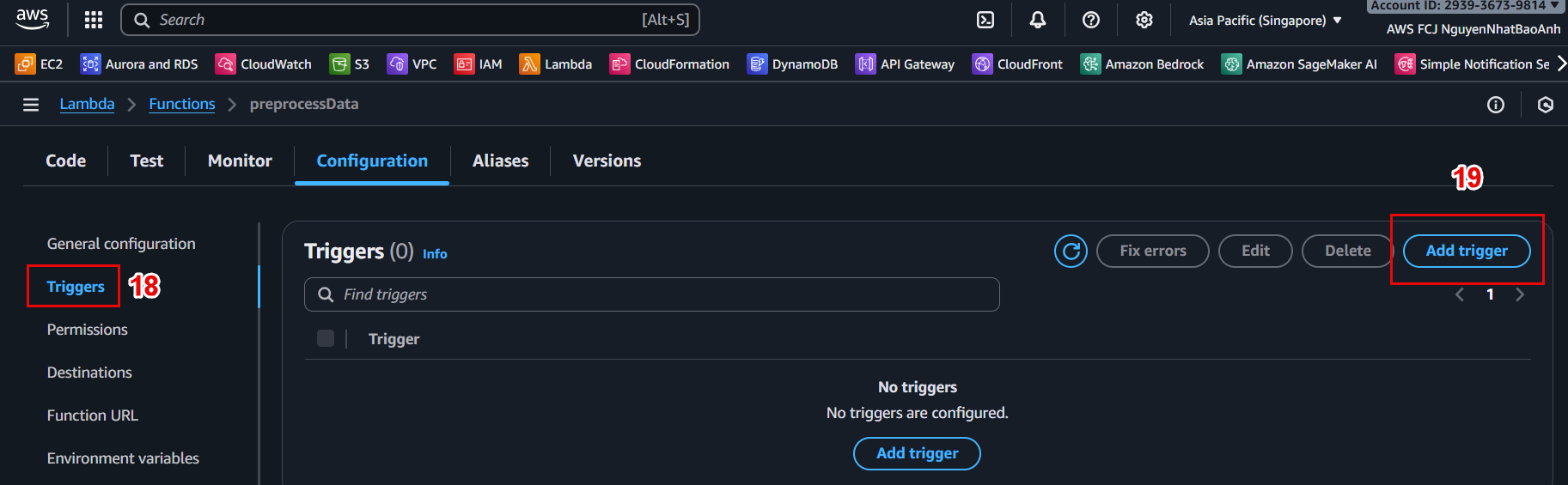
In Lambda Console, go to Configuration → Triggers tab.
Click Add trigger.
Select:
Trigger type: S3

Bucket: your-raw-data-bucket

Event type: PUT

Prefix: raw/
📸 Trigger configuration example:
Make sure the bucket and Lambda are in the same region. Otherwise, the trigger will not work.
🧪 4.6 – Test the Preprocessing Function
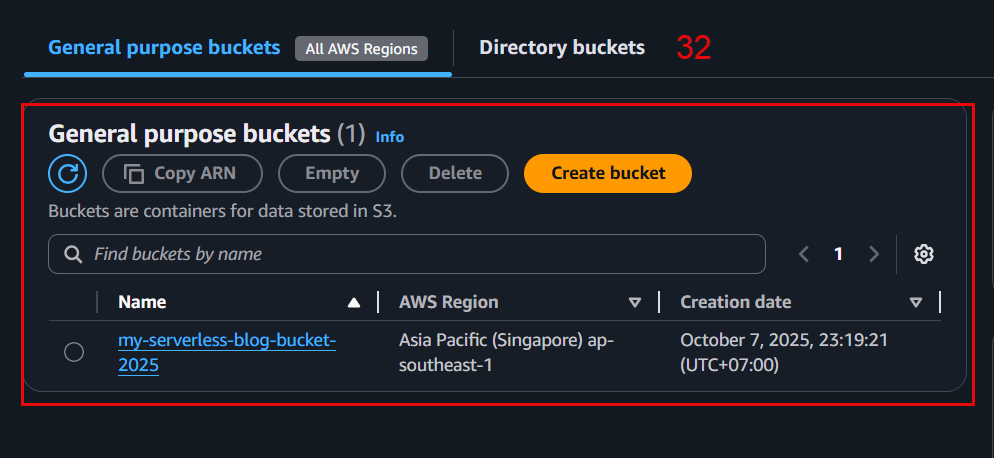
Upload a sample CSV file to the raw/ folder:
aws s3 cp data.csv s3://ml-pipeline-bucket/raw/data.csv
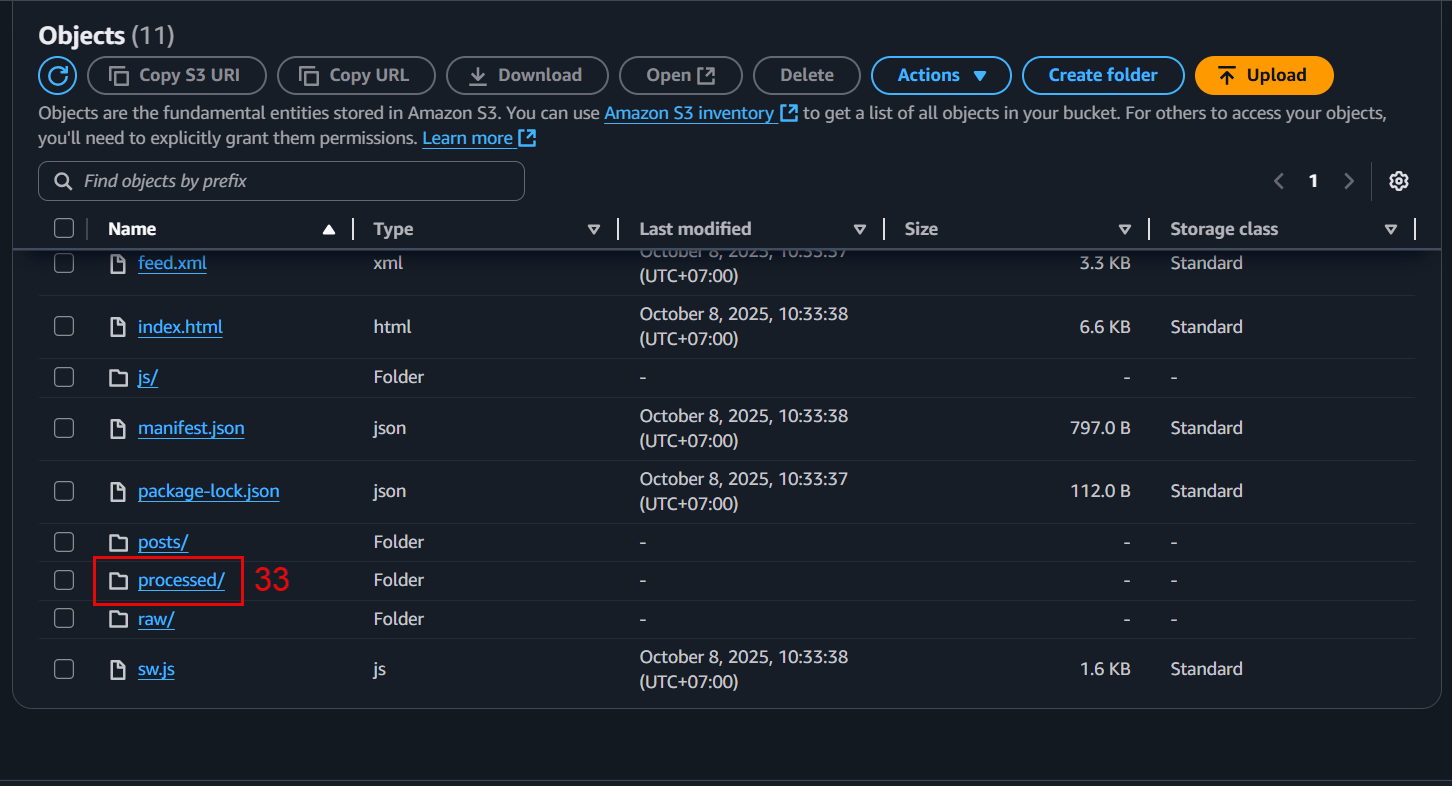
Lambda will automatically run and create the processed file in processed/.

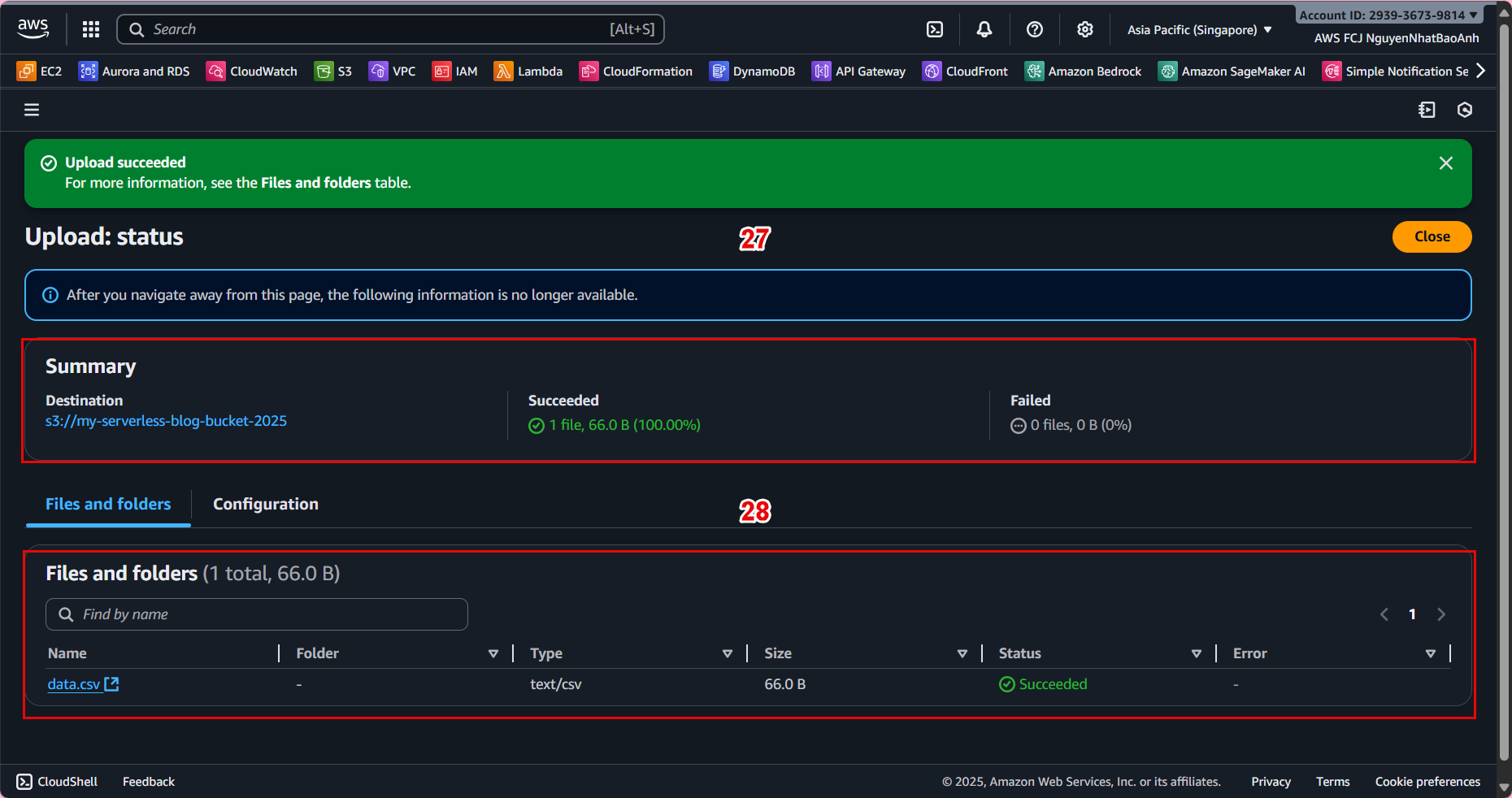 📊 Example result:
Input: s3://ml-pipeline-bucket/raw/data.csv

Output: s3://ml-pipeline-bucket/processed/data.csv
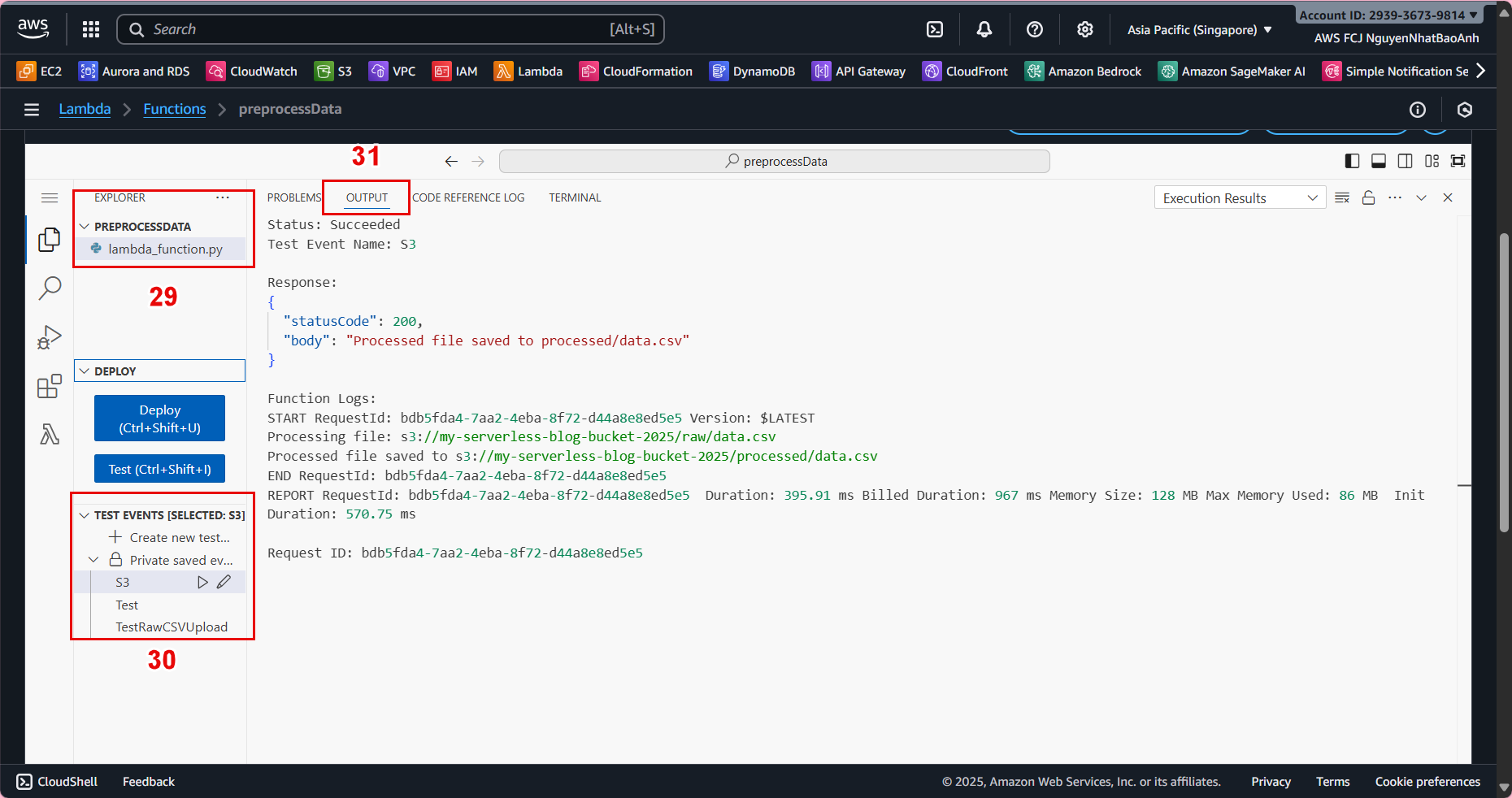
✅ Done
🎉 You have successfully deployed a Lambda Preprocessing Function – the first step in a machine learning pipeline.