Preparing Input Data for SageMaker
Before we start training a machine learning model with Amazon SageMaker, we need to check and organize the pre-processed data from Lambda. This is an important step to ensure the training process is accurate and efficient.
🧠 The role of data in the pipeline
Data is the “fuel” of the ML model. The quality and structure of the input data will directly affect:
- 📊 Training performance – the model learns better when the data has been cleaned.
- 🔎 Prediction accuracy – clean and properly formatted data helps the model predict more accurately.
- ⚙️ Pipeline Automation – SageMaker requires a consistent data structure to create training jobs.
🪄 1. Check the processed data on S3
Go to Amazon S3 in the AWS Management Console to verify the input data from Lambda:
-
Select the bucket you created in section 3 – Create S3 Bucket for Data Storage.
-
Open the
processed/folder – this is where Lambda saved the pre-processed data. -
Check if the CSV or Parquet file exists (e.g.
data_processed.csv).
📸 Example folder structure:
ml-pipeline-bucket/
├─ raw/
│ └─ data.csv
└─ processed/
└─ data_processed.csv
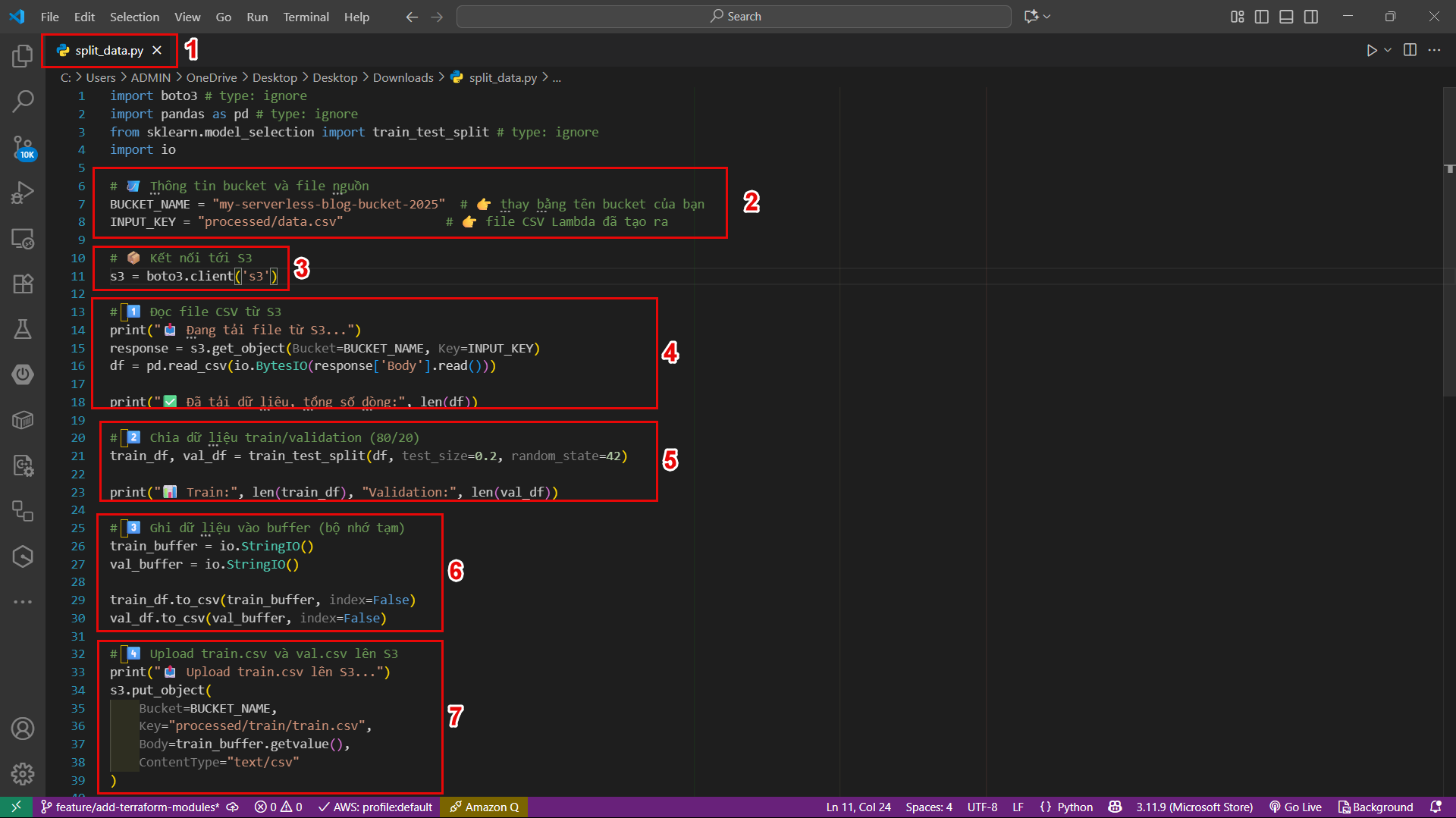
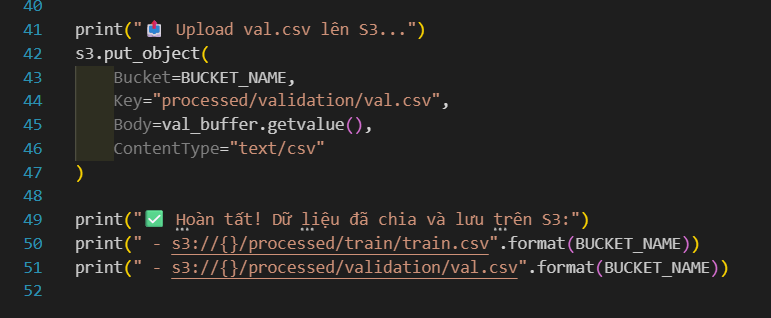
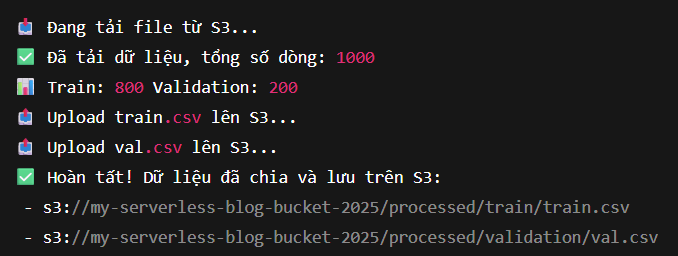
💡 The data in the processed/ folder is the input that SageMaker uses in the next model training step.
🧱 2. Organize data properly in SageMaker
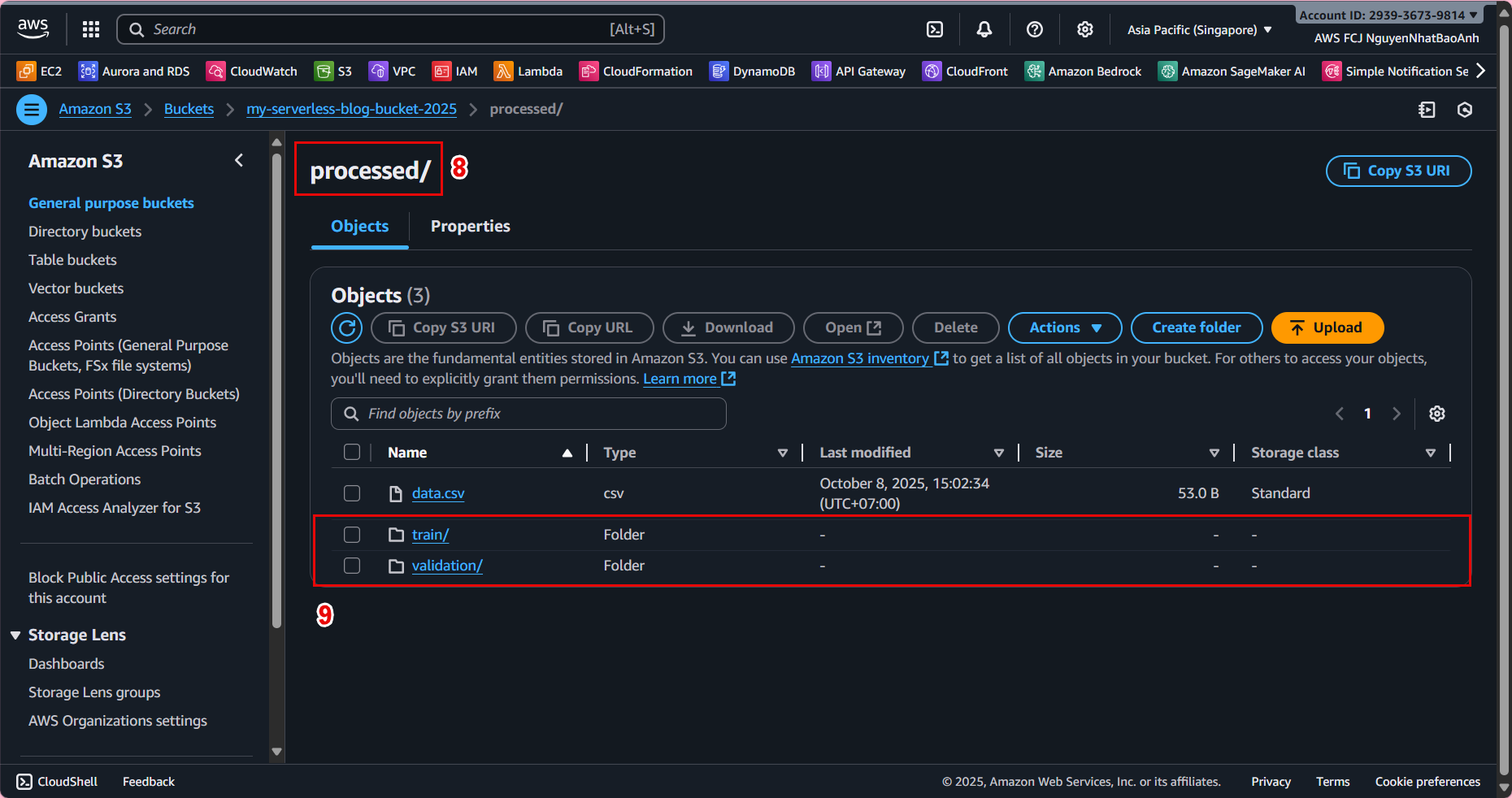
SageMaker expects the input data to be in a specific folder in S3, for example:
s3://ml-pipeline-bucket/processed/train/
s3://ml-pipeline-bucket/processed/validation/
You can organize the data as follows:
- train/ – contains data used to train the model (~80%)
- validation/ – contains data used to evaluate the model (~20%)
📌 For example:
processed/
├─ train/
│ └─ train.csv
└─ validation/
└─ val.csv
🛠️ 3. Update S3 Access Permissions for SageMaker
Ensure the SageMaker IAM Role has access to the bucket containing the data:
s3:GetObjects3:ListBuckets3:PutObject(if write results are needed)
⚠️ If SageMaker does not have permission to read data from the S3 bucket, the training job will fail immediately.
🔍 4. Check the data format
-
SageMaker supports CSV, Parquet, or RecordIO formats.
-
If using CSV, ensure:
-
There are headers describing the columns.
-
There are no null values or formatting errors.
-
Numeric features have been normalized (if needed).
Example of a standard train.csv file:
feature1,feature2,feature3,label
0.21,0.75,0.11,1
0.56,0.22,0.65,0
0.34,0.12,0.88,1


✅ Done
You have completed preparing the input data for SageMaker:
- 📁 The data has been preprocessed and saved to the processed/ folder on S3
- 🗂️ The data has been split into train/ and validation/
- 🔐 The IAM Role has the necessary access
- 🧹 The data format has been verified